
あるサービスに対してリクエストした場合に、受け取るレスポンスデータはほとんどの場合「JSON」です。PHPも例外なくJSONで返ってくることが多いです。
取得したJSONデータはjson_decodeでデコードして利用しますが、オブジェクト(object型)や配列(array型)が混ざっているので、返ってきたデータを取得や表示方法で混乱することがあります。
この記事では、レスポンスで返ってきたJSONデータをjson_decodeして、そのデコードしたデータから特定の値を取得したい場合の指定方法を紹介します。
デコード後のデータの見かたが分かれば、特定の値の取得方法が分かります。XMLの基本的な知識はあるという前提で話をすすめていきます。
目次
json_decodeした後のデータの見かた・取得方法
受け取ったデータが下記の場合を想定します。
※Amazon Product Advertising API(PA-API v5)のレスポンスです
参考:レスポンスデータ
object(stdClass)#5972 (1) {
  ["SearchResult"]=>
  object(stdClass)#5973 (3) {
    ["Items"]=>
    array(1) {
      [0]=>
      object(stdClass)#5922 (6) {
        ["ASIN"]=>
        string(10) "B08LYPKKNM"
        ["BrowseNodeInfo"]=>
        object(stdClass)#5981 (1) {
          ["BrowseNodes"]=>
          array(2) {
            [0]=>
            object(stdClass)#5908 (6) {
              ["Ancestor"]=>
              object(stdClass)#5907 (4) {
                ["Ancestor"]=>
                object(stdClass)#5906 (4) {
                  ["Ancestor"]=>
                  object(stdClass)#5905 (3) {
                    ["ContextFreeName"]=>
                    string(3) "本"
                    ["DisplayName"]=>
                    string(3) "本"
                    ["Id"]=>
                    string(6) "465392"
                  }
                  ["ContextFreeName"]=>
                  string(3) "本"
                  ["DisplayName"]=>
                  string(15) "ジャンル別"
                  ["Id"]=>
                  string(6) "465610"
                }
                ["ContextFreeName"]=>
                string(29) "コミック・ラノベ・BL"
                ["DisplayName"]=>
                string(29) "コミック・ラノベ・BL"
                ["Id"]=>
                string(6) "466280"
              }
              ["ContextFreeName"]=>
              string(12) "コミック"
              ["DisplayName"]=>
              string(12) "コミック"
              ["Id"]=>
              string(10) "2278488051"
              ["IsRoot"]=>
              bool(false)
              ["SalesRank"]=>
              int(183)
            }
            [1]=>
            object(stdClass)#5911 (6) {
              ["Ancestor"]=>
              object(stdClass)#5913 (4) {
                ["Ancestor"]=>
                object(stdClass)#5918 (4) {
                  ["Ancestor"]=>
                  object(stdClass)#5912 (4) {
                    ["Ancestor"]=>
                    object(stdClass)#5909 (3) {
                      ["ContextFreeName"]=>
                      string(15) "Kindleストア"
                      ["DisplayName"]=>
                      string(15) "Kindleストア"
                      ["Id"]=>
                      string(10) "2250738051"
                    }
                    ["ContextFreeName"]=>
                    string(15) "Kindleストア"
                    ["DisplayName"]=>
                    string(18) "カテゴリー別"
                    ["Id"]=>
                    string(10) "2250739051"
                  }
                  ["ContextFreeName"]=>
                  string(9) "Kindle本"
                  ["DisplayName"]=>
                  string(9) "Kindle本"
                  ["Id"]=>
                  string(10) "2275256051"
                }
                ["ContextFreeName"]=>
                string(16) "Kindle マンガ"
                ["DisplayName"]=>
                string(9) "マンガ"
                ["Id"]=>
                string(10) "2293143051"
              }
              ["ContextFreeName"]=>
              string(15) "少年マンガ"
              ["DisplayName"]=>
              string(15) "少年マンガ"
              ["Id"]=>
              string(10) "2430812051"
              ["IsRoot"]=>
              bool(false)
              ["SalesRank"]=>
              int(50)
            }
          }
        }
        ["DetailPageURL"]=>
        string(81) "https://www.amazon.co.jp/dp/xxxxxxxxxxxxxx"
        ["Images"]=>
        object(stdClass)#5979 (1) {
          ["Primary"]=>
          object(stdClass)#5980 (1) {
            ["Medium"]=>
            object(stdClass)#5982 (3) {
              ["Height"]=>
              int(160)
              ["URL"]=>
              string(59) "https://m.media-amazon.com/images/I/61xmfpBGbaL._SL160_.jpg"
              ["Width"]=>
              int(118)
            }
          }
        }
        ["ItemInfo"]=>
        object(stdClass)#5977 (1) {
          ["Title"]=>
          object(stdClass)#5978 (3) {
            ["DisplayValue"]=>
            string(52) "鬼滅の刃 23 (ジャンプコミックスDIGITAL)"
            ["Label"]=>
            string(5) "Title"
            ["Locale"]=>
            string(5) "ja_JP"
          }
        }
        ["Offers"]=>
        object(stdClass)#5974 (1) {
          ["Listings"]=>
          array(1) {
            [0]=>
            object(stdClass)#5976 (3) {
              ["Id"]=>
              string(208) "xxxxxxxxxxxxxxxxxxxxxxxxxxxxxxxxxxxxxxxxx"
              ["Price"]=>
              object(stdClass)#5975 (3) {
                ["Amount"]=>
                float(481)
                ["Currency"]=>
                string(3) "JPY"
                ["DisplayAmount"]=>
                string(6) "¥481"
              }
              ["ViolatesMAP"]=>
              bool(false)
            }
          }
        }
      }
    }
    ["SearchURL"]=>
    string(139) "https://www.amazon.co.jp/s?k=xxxxxxxxxxxxxxxxxx"
    ["TotalResultCount"]=>
    int(41)
  }
}
json_decodeした後のデータの見かた
基本的にはXMLファイルですが、要素には「object型」や「array型」が入り混じっています。
ここで重要なのが「object型」なのか「array型」なのかを把握することです。理由は呼び出し方が違うからです。
「array型」の取得・表示方法
$array = [
 "name" => "モモ",
];

$array["name"];
$array[0];
「object型」の取得・表示方法
class object{
 public $name = "サトシ";
}

$object->name;
JSONをjson_decodeしたデータを取得・表示方法
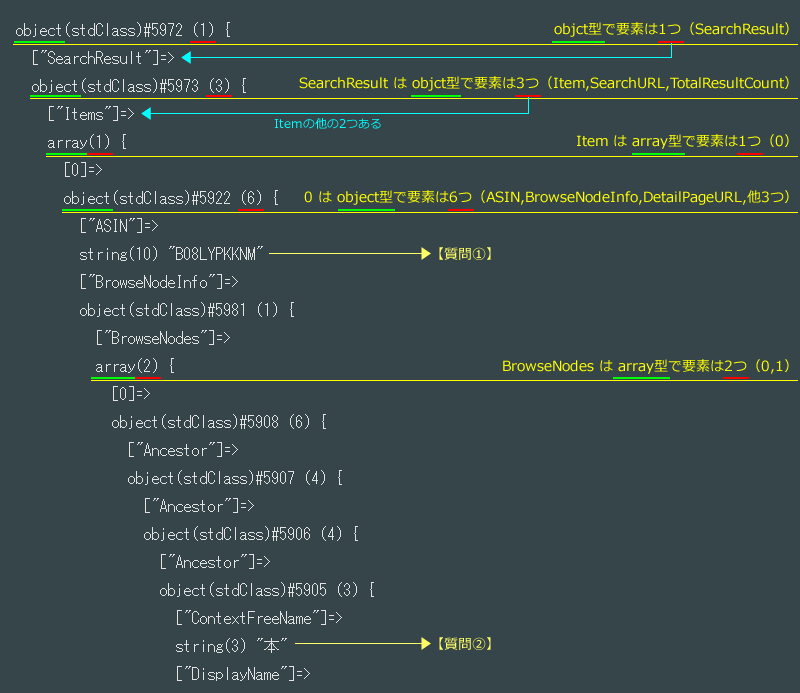
下記の画像を使って、データの前半部分をチェックしてみましょう。
※画像は前述のレスポンスデータの前半一部分です。
レスポンスデータは「object型」で要素が1つ「SearchResult」があります。
階層が一つ下がって、「SearchResult」も「object型」で、この中には3つの要素「Item」「SearchURL」「TotalResultCount」があります。
この3つの要素の一つ「Item」はarray型で要素は1つ「0」です。
そして、「0」はobject型で中には6つの要素「ASIN」「BrowseNodeInfo」「他4つ」があります。
※前述のレスポンスデータを使います。返ってきたデータが「$JSON」でそれをjson_decodeした場合。
正解はこちら。
$response = json_decode($JSON);

echo($response->SearchResult->Items[0]->ASIN);
//B08LYPKKNM
- $responseは「object型」
- SearchResultは「object型」
- Itemsは「array型」
- ASINは「object型」
そのため、このような指定方法になります。
$response->SearchResult->Items[0]->ASIN
正解はこちら。
$response = json_decode($JSON);

echo($response->SearchResult->Items[0]->BrowseNodeInfo->BrowseNodes[0]->Ancestor->Ancestor->Ancestor->ContextFreeName);
//本
長いのですが順番におっていきます。
- $responseは「object型」
- SearchResultは「object型」
- Itemsは「array型」
- BrowseNodeInfoは「object型」
- BrowseNodesは「array型」
- Ancestorは「object型」
- Ancestorは「object型」※同じ名称ですが上のAncestorの要素
- Ancestorは「object型」※同じ名称ですが上のAncestorの要素・同じ名称が3連続
- ContextFreeNameは「object型」
そのため、このような指定方法になります。
$response->SearchResult->Items[0]->BrowseNodeInfo->BrowseNodes[0]->Ancestor->Ancestor->Ancestor->ContextFreeName
json_decodeした後のデータの見かた・取得方法まとめ
json_decodeした後、var_dumpすると画面上は、データの羅列となって見づらいです。
Chromeブラウザであればソースコード(Ctrl+U)を表示することで、XMLの階層化がわかります。
データを見るときは、まず「object型」なのか「array型」なのかを確認します。
「object型」なら「->」で指定し、「array型」なら「0」というように表示されている要素名で指定していきます。
あせってしまうと、何がなにやら分からなくなってしまいますが順番に根気よく追っていけば表示できます。
